Call a tool in your IDE/MCP Client
Tools enable your AI agents to perform actions on your behalf. For specific workflows and use cases, this may involve calling tools from multiple servers. Arcade facilitates this by allowing you to create MCP Gateways to federate the tools from multiple MCP servers into a single collection for convenient management, control, and access. For example, if your agent specializes in solving specific tickets in Linear, you may want to use tools from the GitHub, Slack and Linear servers in your agent. These add up to 88 tools, which could be overwhelming for an LLM to use effectively. What you want is to get from these servers only the tools that matter for your agent. An allows you to do just that: pick only the tools required for this workflow, and you can connect it to any MCP client, making it possible to port your to multiple platforms and IDEs, and even share it with other .
Outcomes
Create a coding agent using an Gateway to call tools from multiple .
You will Learn
- Create an Gateway
- Connect the Gateway to Cursor or VS Code
- Call tools from the Gateway in your
Prerequisites
- An Arcade
Create an MCP Gateway
Create a new Gateway. Go to the MCP Gateways dashboard , and click the “Create ” button.
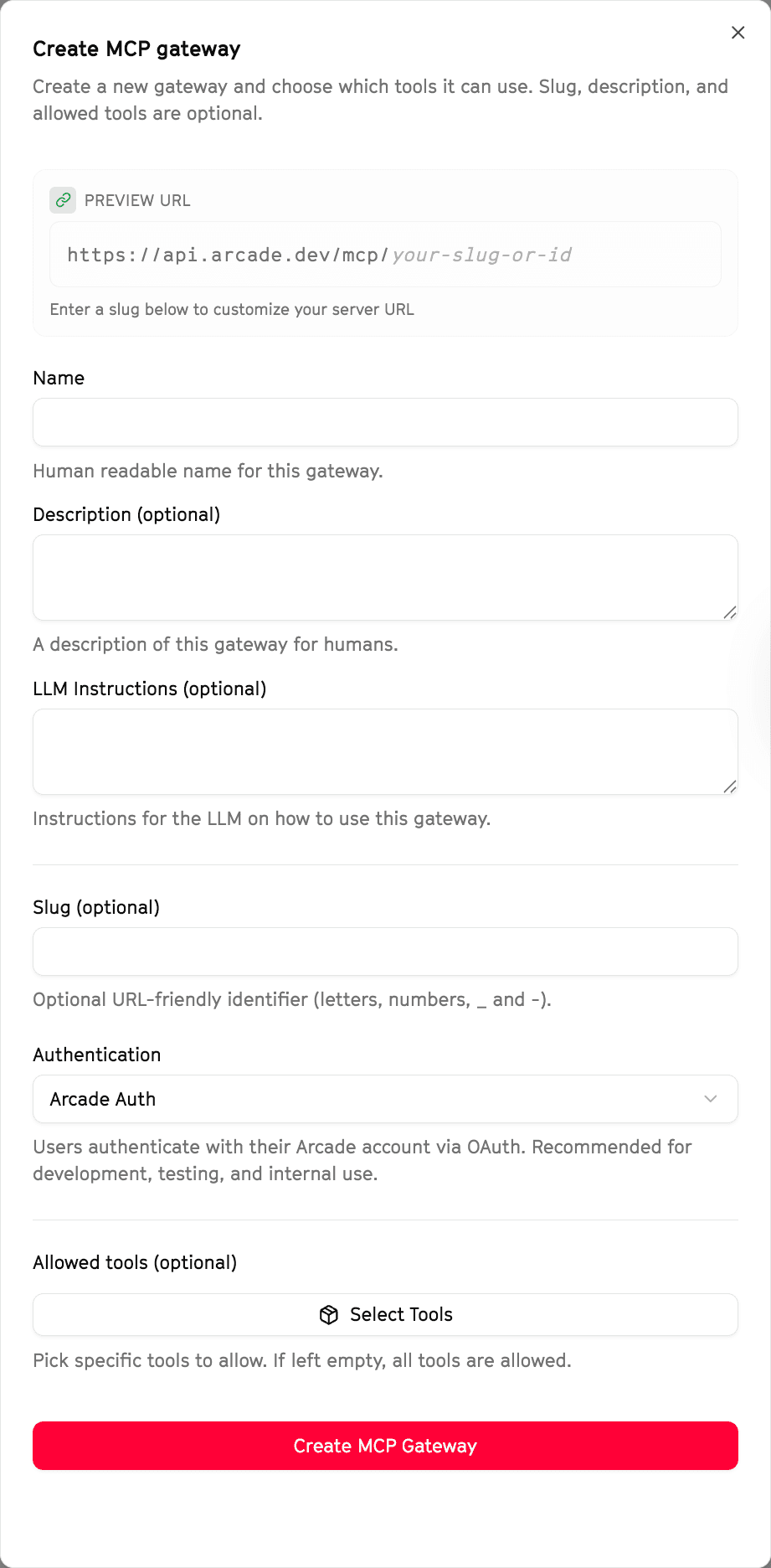
Give your gateway:
- A name
- A description
- A slug (this is recommended so it’s easy to remember and share, but will be generated if left blank)
- Select the Authentication mode for the Gateway
- Arcade Auth: To access the Gateway, you’ll need to authenticate with your Arcade in an OAuth flow on a browser. For security, the token is only valid for a short time and your MCP client will need to refresh it periodically.
- Arcade Headers: To access the Gateway, you’ll need to authenticate with your Arcade account by passing an key in the
Authorizationheader and the ID in theArcade-User-IDheader. Use this authentication mode for MCP clients that don’t support browser authentication or token refresh.
Select the tools you want to include in the gateway
Click the “Select ” button in the form to select the tools you want to include in the gateway. You can select tools from any server available to the active . For this example, select the following tools:
- the GitHub server
- the Linear server
Feel free to select any you want to include in your specific use case.
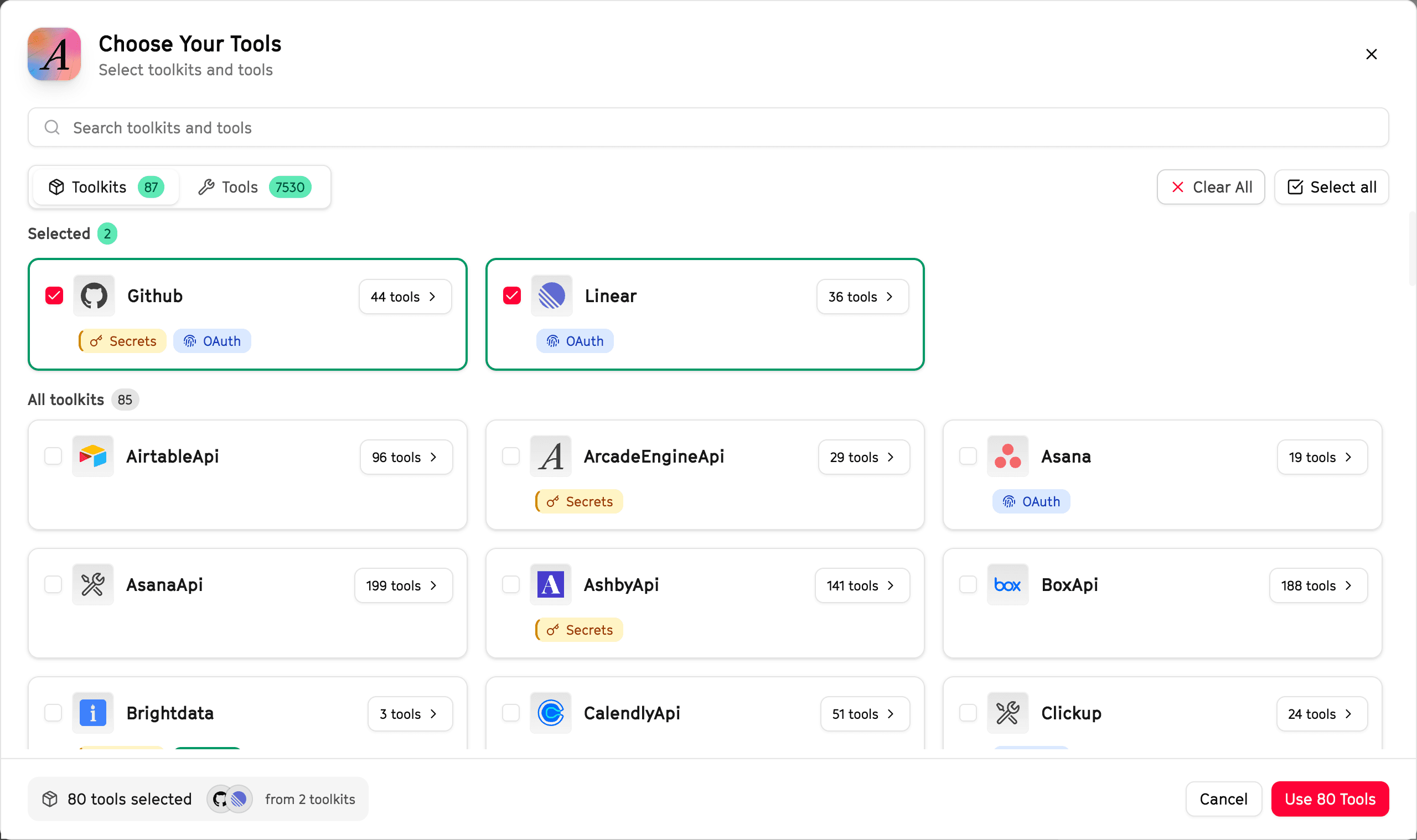
Once you’ve selected the tools you want to include in the gateway, click the “Use N tools” button in the tool picker, and then click the “Create Gateway” button to create the gateway.
You can select as many tools for your Gateway as you want, but be mindful of how the MCP clients will handle the large number of tools. Some clients may not handle a large number of tools well, and may consume a significant portion of the LLM’s context window. We recommend keeping the number of tools in a single below 80.```
Connect the MCP Gateway to an MCP client
Arcade Gateways are compatible with any MCP client that supports:
- Streamable HTTP transport
- OAuth, or support for setting up headers for the HTTP transport
Get the URL of your Gateway by clicking the “Copy URL” button in the details page.


Select the client you want to use to read the instructions to connect to the :




Try it out
- Open your IDE’s chat pane.
- Ask the to do something! For example, “Check the latest linear issue assigned to me. Then, create a new GitHub branch, implement the fix, and add tests. If all the tests pass, create a pull request and assign it to me.”
As you interact with the agent, it will call the tools from the Gateway. Your should prompt you to visit links to authorize access to Linear and GitHub. After this, it will start using to carry out the task! Subsequent calls will not require authorization.
Next Steps
- Learn more about MCP Gateways.
- Learn how to use Gateways with:
- Build your own servers with arcade-mcp.