Add remote MCP servers
Use this guide if you want to connect an existing server that Arcade does not host. You will add the server to your Arcade project, expose its tools in , and call those from Arcade SDKs.
Outcomes
Register a remote server and use its in gateways and SDKs.
You will Learn
- Add a remote server to an Arcade
- Configure advanced connection settings
- Use the server tools in Gateways and SDKs
Prerequisites
- An Arcade
- A remote server URL that Arcade can reach
- Access to any auth credentials your server requires
Why use MCP Gateways for Remote MCP Servers
Gateways let you manage and filter tools in one place, so your agent or team uses a curated set of tools across clients. This is especially useful for remote MCP servers, where you may not have control over the tools available. By using , you can select the you want to use and hide the ones you don’t want to use.
Add the remote server to your project
Open the MCP servers page
Go to the MCP servers dashboard for your and click Add server.
Enter the required fields
Arcade requires two fields for remote servers:
- ID: A unique, human-readable identifier (for example,
render-mcp-server) - URI: The public URL for your server (for example,
https://mcp.render.com/mcp)
Use the MCP Debugger to verify the remote server’s compliance before adding it to Arcade.
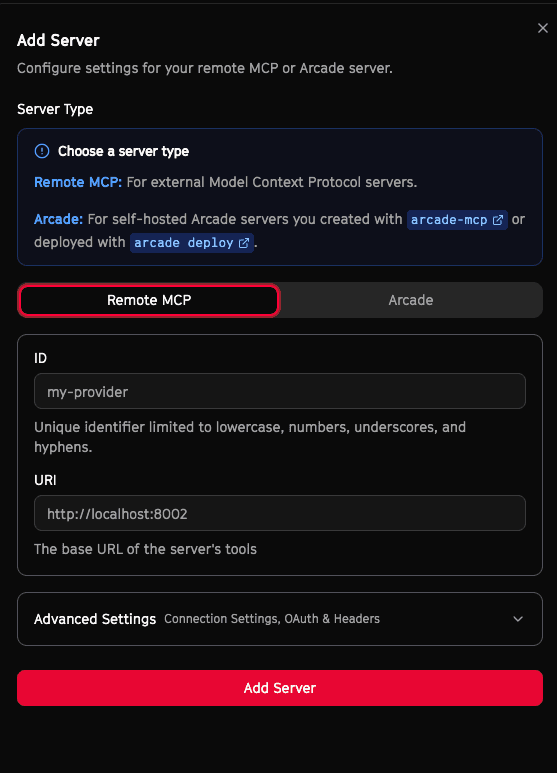
Save and confirm the connection
Create the server and confirm that Arcade lists the server tools in your project. If the remote server requires authentication, Arcade will prompt you to complete the OAuth flow.
Arcade pre-loads the list of tools available to the user who configures the remote server so that you can filter them by your own criteria in your . Be sure to connect as an ‘admin’ user who has access to the broadest selection of tools in the remote server. Arcade then re-load the list of tools for every user using your - if a is not available to the agent’s end-, it will not be available via the gateway.
Configure advanced settings
Remote servers often require more than a URL. Use Advanced settings to configure connection, OAuth, and header details.
Common settings include:
- Connection settings: Configure timeout and retry values for calls.
- OAuth2 authorization (optional): Add client ID and client secret, and set an authorization URL if it differs from the server URI. Use the provided redirect URI when configuring your OAuth app.
- Custom headers: Add headers such as
AuthorizationorX-API-Keyand reference secrets with${secret:NAME}. - Header secrets: Store API tokens or passwords and reference them in headers.
Use remote tools in MCP Gateways
Once the server is registered, its tools show up in the Playground for this project, as well as in the Gateway picker.
- Create or edit an Gateway in the MCP Gateways dashboard .
- Open Select and filter by your remote server name.
- Choose the you want to expose through the gateway.
Call remote tools from Arcade SDKs
Remote tools behave like any other Arcade . Try it out in the Playground first to learn any nuances about the name and arguments. Copy the tool name from the tool picker or tool catalog, then call it with the SDK.
Python
from arcade import Arcade

client = Arcade(api_key="ARCADE_API_KEY")

result = client.tools.execute(
    tool_name="render-mcp-server.get_key_value",
    input={"keyValueId": "foo-bar"},
    user_id="user-123",
)

print(result)Limitations and caveats
Remote servers must be reachable from Arcade and must support the Streamable HTTP(s) transport. If your server depends on non-HTTP transports, Arcade cannot proxy it.
- If the remote server is offline, gateway and SDK calls will fail until it is reachable again.
- Gateways only expose the tools you select, not every on the server.
- Arcade only supports tools from remote servers today. Prompts, resources, and sampling are not supported yet.