Auth0
Use Auth0 as a User Source so the people who already sign in through your Auth0 tenant can sign in to your MCP Gateways. This guide walks you through what to do in the Auth0 dashboard. Once you have the values it tells you to copy, create the User Source in Arcade.
Before you start
- An Auth0 account with permission to create applications in your tenant, typically the Admin role.
- An Arcade project where you’ll create the User Source.
Register an application in Auth0
Open the Auth0 dashboard
Sign in to your Auth0 dashboard .
Go to Applications → Applications, then click Create Application.
Choose Regular Web Application
In the Create application dialog, give the application a name your team will recognize, for example Arcade User Source. Under Choose an application type, select Regular Web Application. That choice gives Arcade the confidential-client setup and Authorization Code flow it needs. See Auth0’s application types reference for more on each option.
Click Create. Auth0 opens the new application’s Settings tab.
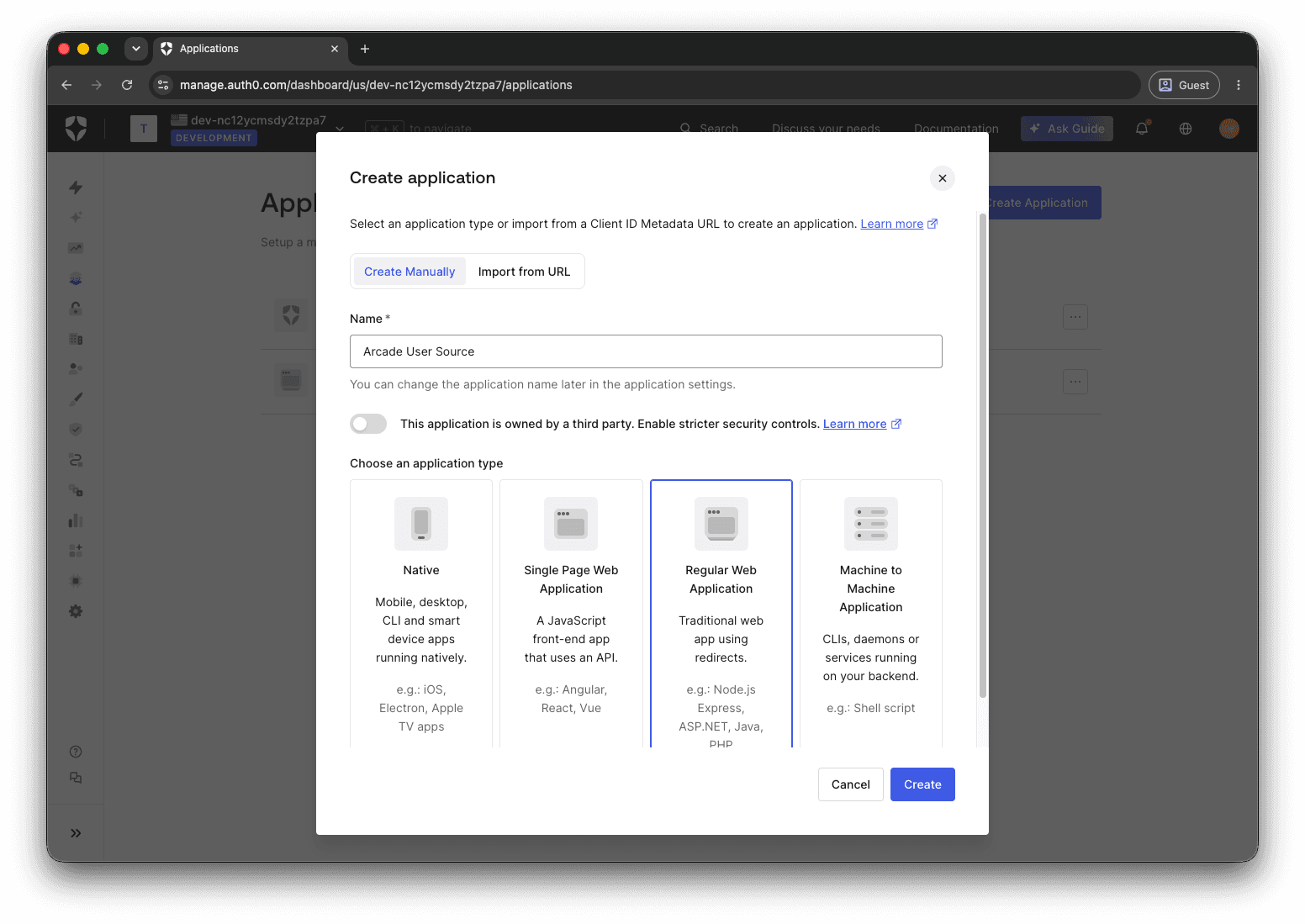
Configure the Allowed Callback URLs
On the Settings tab, scroll to Application URIs and paste this URL into Allowed Callback URLs:
https://cloud.arcade.dev/oauth2/intermediate_callback
Leave the other URI fields (Allowed Logout URLs, Allowed Web Origins) empty unless you have a separate reason to set them. Scroll to the bottom of the Settings tab and click Save Changes.
Copy the application credentials
Scroll back to the Basic Information section at the top of the Settings tab and copy three values:
- Domain
- Client ID
- Client Secret. Click the eye icon to reveal it before copying.
You’ll paste these into Arcade in the next section.
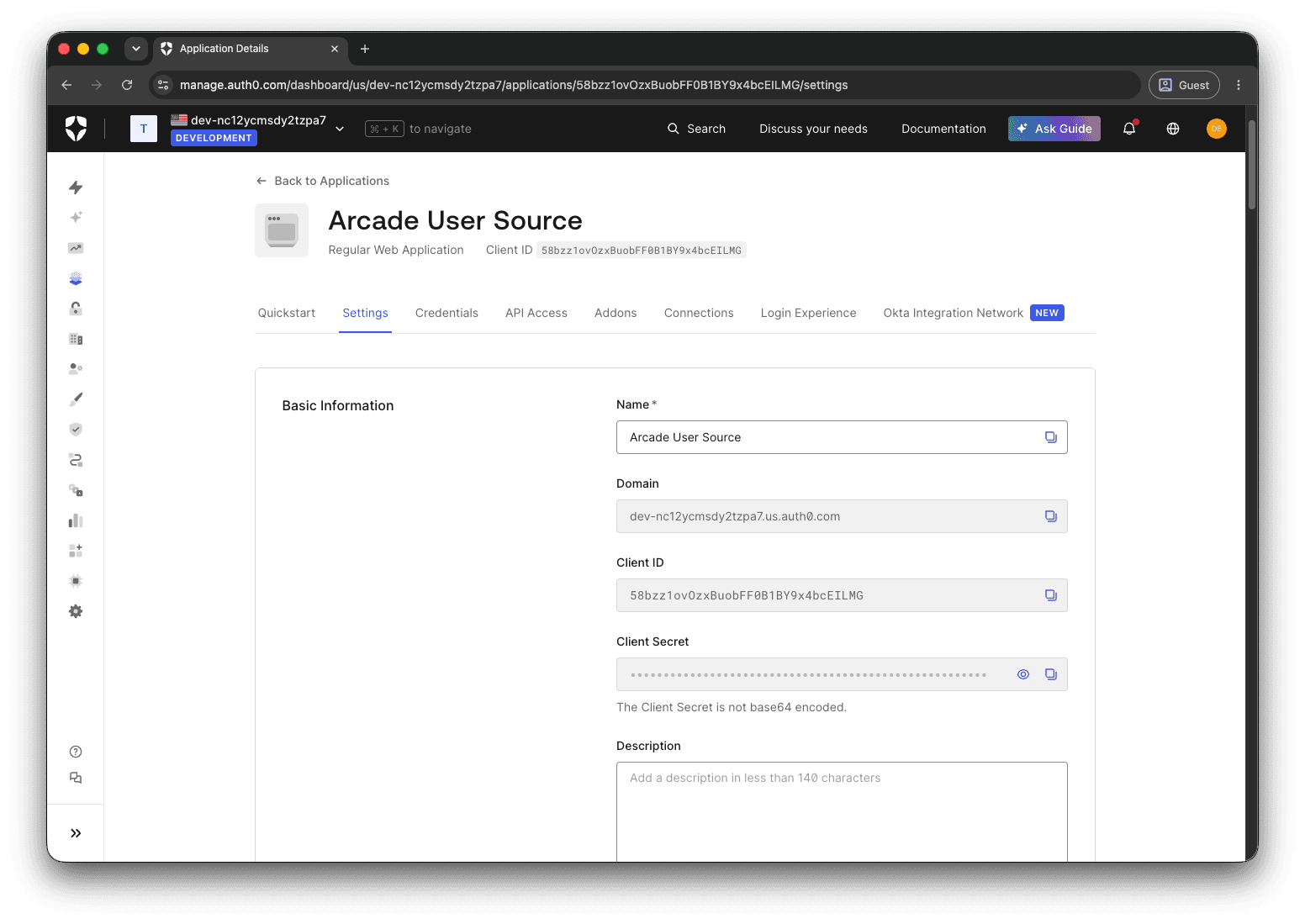
Copy these values to Arcade
Copy these values into Arcade’s User Source form:
| Arcade field | Where to find it in Auth0 |
|---|---|
| Issuer URL | https://<your-auth0-domain>/, where <your-auth0-domain> is the Domain value from the application’s Settings tab. Include the trailing slash. Auth0 emits the issuer with a trailing slash and Arcade matches the value exactly. |
| Client ID | The Client ID field in Basic Information. |
| Client Secret | The Client Secret field in Basic Information. |
Create the User Source in Arcade
Open the Arcade Dashboard, select your project, navigate to User Sources, and click Create User Source. Paste the values from the table above. For a walkthrough of the form, see Create a User Source in the User Sources overview.
Once the User Source is active, attach it to an MCP Gateway by following Create via Dashboard and picking User Source under “Non-Arcade Users” in the gateway form.
Notes
- Tenant domains and regions: Newer Auth0 tenants use region-prefixed domains such as
<tenant>.us.auth0.comor<tenant>.eu.auth0.com. Older tenants use<tenant>.auth0.com. Either form works; copy exactly what the Domain field on the application’s Settings tab displays. See Auth0’s tenant region documentation for more on which region your tenant is in. - Custom domains: If you use Auth0’s custom domain feature (for example,
auth.yourcompany.com), use the custom domain as the Issuer URL hostname. End users see your branded domain on the sign-in page. - Connections: Auth0 lets you wire up database, social, and enterprise connections behind a single tenant. Arcade doesn’t care which connections you’ve enabled, only that the end users who try to sign in have access to this application. Configure connections under Authentication → Database / Social / Enterprise in the Auth0 dashboard.
- Client secret rotation: Auth0 lets you rotate the client secret from the Settings tab’s Basic Information section. See Rotate the client secret in the User Sources guide for the Arcade side.
- Custom subject claims: Arcade’s default Subject Claim,
sub, is Auth0’s connection-prefixed user identifier (for example,auth0|abc123for a database user orgoogle-oauth2|abc123for a Google-linked user). It’s stable per user across the tenant. If you need Arcade to identify users by a different value, add a custom claim to the ID token via an Auth0 Action and set the User Source’s Subject Claim to its name. Arcade only reads ID tokens, so the claim must be on the ID token (not the access token). See Advanced: scopes and subject claim in the overview for what makes a good claim.