Stytch
Use Stytch as a User Source so the people who already sign in through your Stytch project can sign in to your MCP Gateways. Stytch’s Connected Apps feature turns your Stytch project into an OIDC identity provider that Arcade can connect to. This guide applies to both Stytch Consumer and B2B projects, where the Connected Apps feature behaves identically. Once you have the values it tells you to copy, create the User Source in Arcade.
Before you start
- A Stytch admin role that can manage Connected Apps in your project.
- A Stytch project. You can develop and test in the project’s test environment first and switch the Connected App to production mode when you’re ready.
- The Stytch Frontend SDK enabled on the project. Connected Apps uses a customer-hosted page to render the authorization UI, and the SDK is what powers that page. Stytch’s build a login flow guide covers the SDK setup.
- An Authorization URL configured on the Connected App, pointing to the page on your site that mounts Stytch’s
<IdentityProvider />(Consumer) or<B2BIdentityProvider />(B2B) component. Stytch’s integrate Connected Apps with an existing authentication system guide walks through the setup. - An Arcade project where you’ll create the User Source.
Register a Connected App in Stytch
Open the Stytch Dashboard
Sign in to the Stytch Dashboard for your project.
Go to Connected Apps in the left navigation, then click Add Application.
Choose the application type
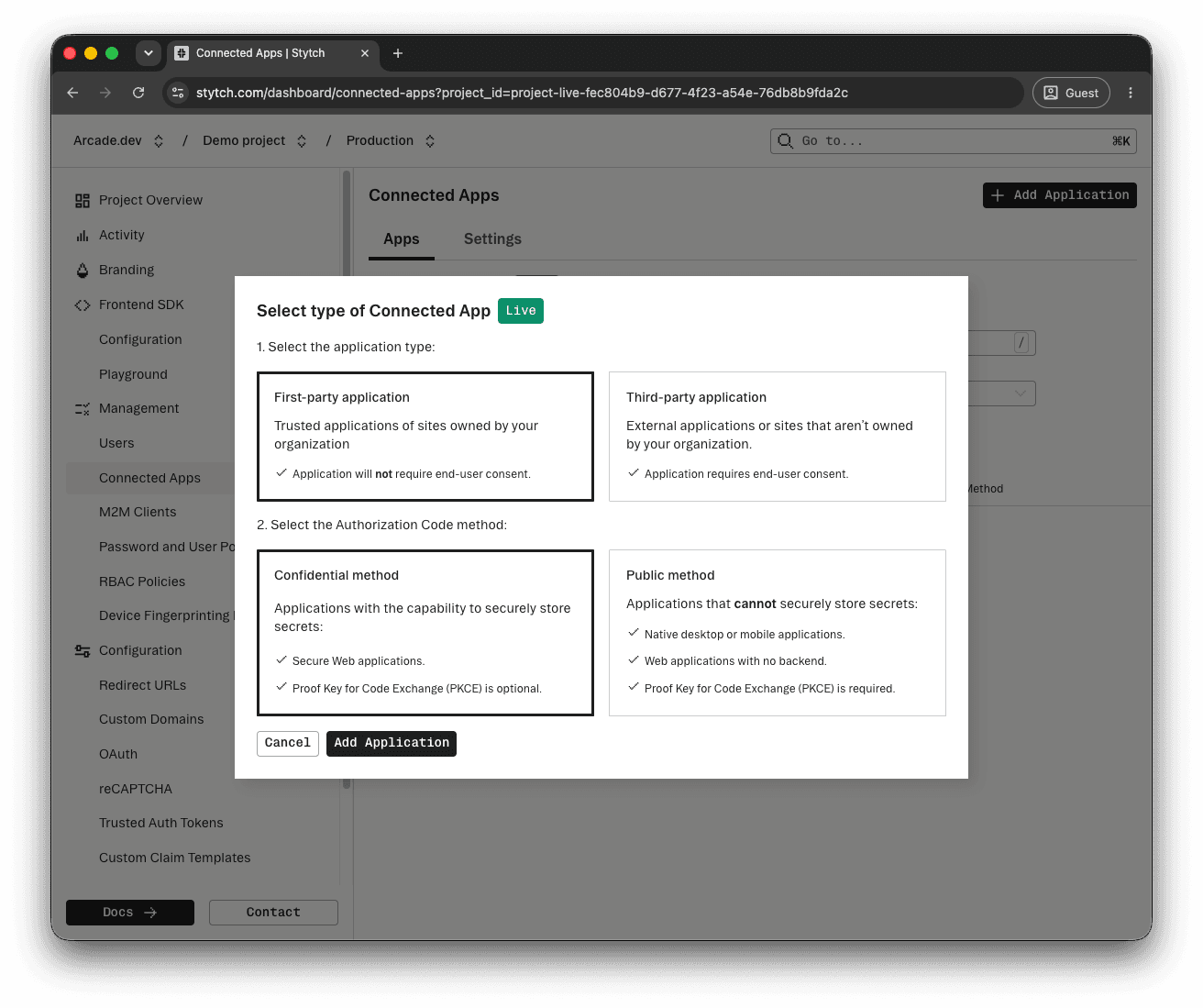
In the Select type of Connected App dialog:
- Application type: First-party application. First-party apps skip the Stytch consent screen at sign-in, which fits the User Source pattern where Arcade is acting as part of your own identity infrastructure rather than a third-party application requesting access.
- Authorization Code method: Confidential method, with Secure Web Application selected. Arcade authenticates with Stytch using a client secret, which the confidential method supports. The public method is intended for applications that cannot securely store a secret and does not apply here.
Click Add Application.
Name the app and add the Arcade redirect URL
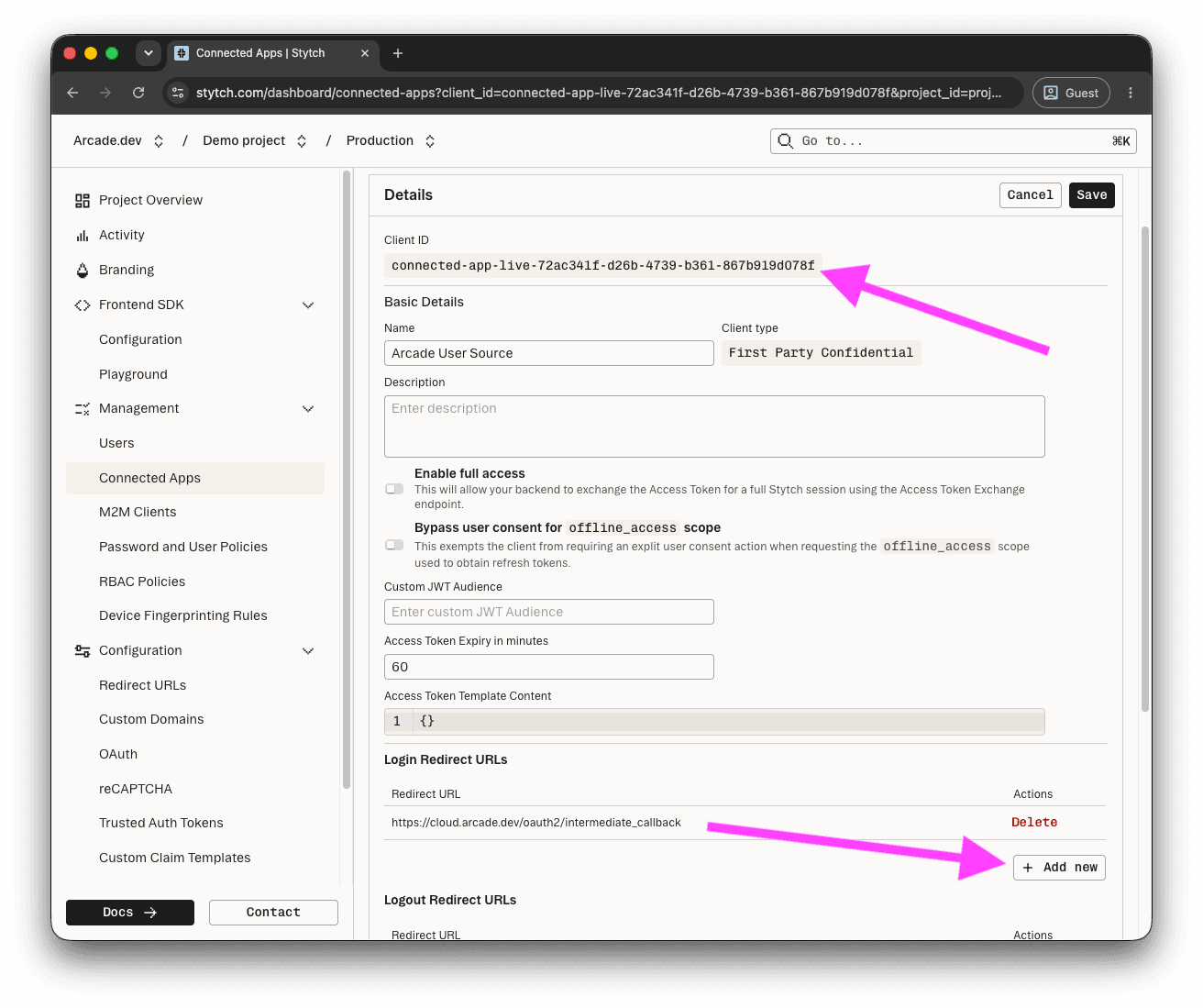
On the new app’s Details page, set Name to something your team will recognize, for example Arcade User Source.
Scroll to the Login Redirect URLs section and add this URL:
https://cloud.arcade.dev/oauth2/intermediate_callback
Click Save to apply the changes. Stytch reveals the Client ID at the top of the details panel.
Save the client secret
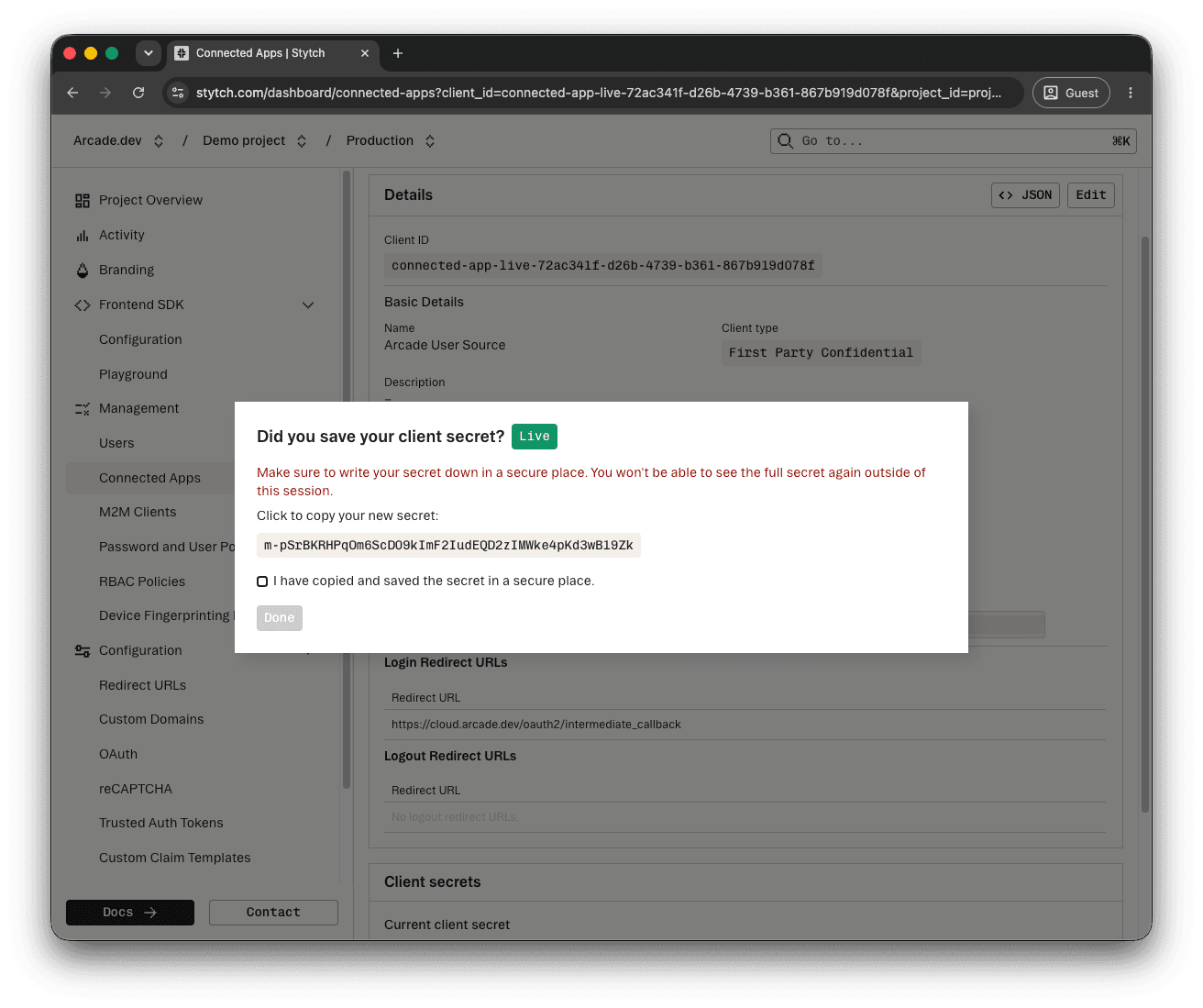
Stytch shows the Client Secret in a one-time dialog after the app is created. Copy the value and store it somewhere secure. The full secret is not retrievable from the Dashboard afterward, so a lost value requires rotating to a new one.
Check the I have saved my client secret in a secure place box and confirm.
Copy these values to Arcade
Open your project’s Project Overview page in the Stytch Dashboard. The Project ID & API keys section lists your Project domain, which is the OIDC issuer Arcade uses.

Copy these values into Arcade’s User Source form:
| Arcade field | Where to find it in Stytch |
|---|---|
| Issuer URL | The full URL form of your Project domain from the Project Overview page, for example https://<your-project-domain>.customers.stytch.dev. Stytch publishes the OIDC discovery document at <project-domain>/.well-known/openid-configuration. |
| Client ID | The ID shown at the top of the Connected App’s Details page. |
| Client Secret | The Client Secret you saved when you created the app. |
Create the User Source in Arcade
Open the Arcade Dashboard, select your project, navigate to User Sources, and click Create User Source. Paste the values from the table above. For a walkthrough of the form, see Create a User Source in the User Sources overview.
Once the User Source is active, attach it to an MCP Gateway by following Create via Dashboard and picking User Source under “Non-Arcade Users” in the gateway form.
Notes
- Test vs production: New Connected Apps default to test mode and issue test-environment credentials. Enable the Enable for production toggle on the app’s Details page when you’re ready to issue live tokens, then update the User Source in Arcade with the production Client ID and Client Secret.
- Custom Stytch domains: If you’ve configured a custom domain on the Stytch project, use that hostname as the Issuer URL instead of the
<project-domain>.customers.stytch.devvalue. End users see the custom domain on the authorization page. - Client secret rotation: Stytch supports rotating the client secret for a Connected App from the Dashboard or via the API. The rotation flow keeps the previous secret active while you swap the new one into Arcade. See Rotate the client secret in the User Sources guide for the Arcade-side procedure.
- Subject Claim: Arcade’s default Subject Claim,
sub, is the Stytch user’s stable identifier and is the recommended value. Stytch’s Connected Apps issues a fixed set of standard OIDC claims on the ID token. Stytch does not currently support a custom-claim template for the ID token, so the standard claim set is what Arcade has available. See Advanced: scopes and subject claim in the overview for what makes a good claim.